1. Go to Google Calendar
2. Click the arrow in the calendar listing along the left side of the page next to the calendar you'd like to export. Choose 'Calendar settings.' See the two images below for a visual.


3. Scroll down a bit and find the green button labeled 'ICAL.' Go ahead and click it.

4. Click the link that appears in the Calendar Address box.

5. The .ics file will now download to your computer. In my case it goes to my 'Downloads' folder.

6. Go to the ICS to CSV Converter Website at: http://www.projectwizards.net/en/support/?f=ics2csv. Press the 'Choose file' button and navigate to the location where the .ics file resides on your computer (again, for me this is the downloads folder).

7. Press the 'Convert to CSV' button as you see in the image below.

8. Press the 'Download converted csv file' button.
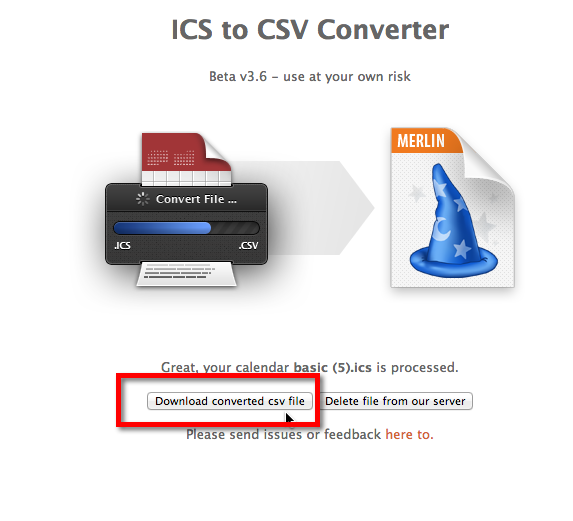
9. Your CSV file will download to your computer. I'm using Chrome so I receive a notification that the file has successfully downloaded in the lower left hand corner of the browser window.

10. Open up your spreadsheet program. In this case I am using Libre Office's spreadsheet tool, but it will work similarly on Microsoft Office. Do a file>open and navigate to your CSV. Make sure you are opening the file using the following settings. If you don't do this the data will be munged into a single column. See the screenshot below for my settings.

11. The data from the calendar is now happily residing in a spreadsheet, separated out by columns and so forth.

0 Comments