Connecting to the W and S Drives from a Mac
0. MAKE SURE YOU ARE ON THE FACULTY NETWORK.
1. Go to the Finder/desktop on your Mac
2. Select the Go Menu and choose ‘Connect to Server’

3. In the ‘Connect to server’ box, enter exactly what you see in the screenshot below to connect to your S drive:
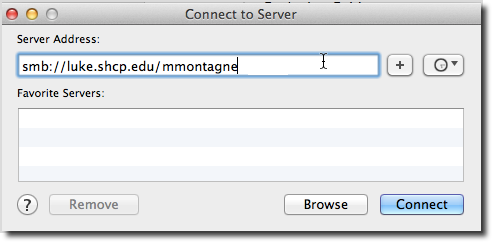
4. To save this preference so you don’t have to type this out in the future, press the little plus button. See the screenshot below:
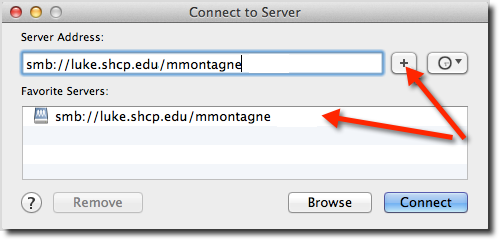
5. Press connect button and you’ll be prompted to login to the network. Type your first initial + last name and your password for signing into the network. Check the option that says ‘Remember this password in my keychain’ if you’d like the convenience of not having to always enter in your password. See the screenshot below for specifics:

6. To connect to your S drive/departmental folder, go to the finder, choose the Go Menu and drag down to ‘Connect to server.’ Enter what you see in the screengrab below, only substituting your department’s name at the end (the department names are as follows: english, math, science, vpa, religion, community life team, social studies). Press the plus button so this is stored for you in the future. See the screenshot below.
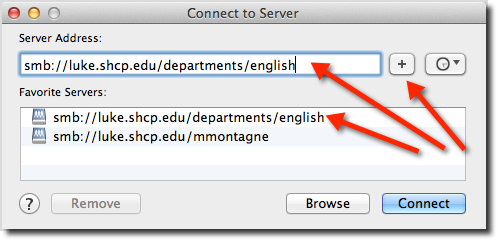
7. Just like you did in step 5, press connect button and you’ll be prompted to login to the network. Type your first initial + last name and your password for signing into the network. Check the option that says ‘Remember this password in my keychain’ if you’d like the convenience of not having to always enter in your password. See the screenshot below for specifics:
0 Comments